Purpose
This article provides guidance on how to monitor and manage server storage capacity in Newired. It is especially relevant when the system indicates that storage usage is approaching its limit.
Running out of storage can lead to system instability, degraded performance, or data processing issues, particularly in Analytics.
How to Identify the Issue
Newired monitors server storage health and displays a warning banner in the Portal when storage usage exceeds a defined threshold (default 90%).
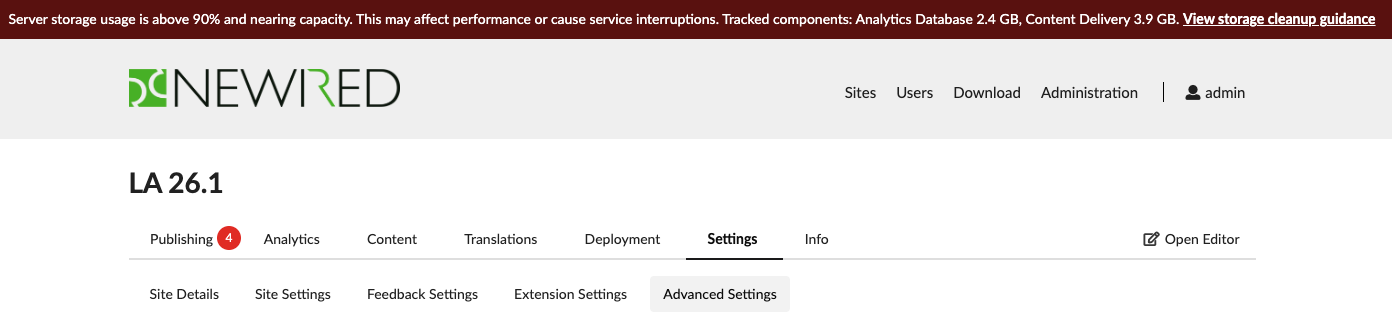
This warning indicates that immediate action is recommended to prevent further issues.
Storage health information is retrieved from the Newired Server via the endpoint:
<instance>/rest/app/diag
Configuring Storage Warning Threshold
The storage warning threshold is configurable.
Default value: 90%
Configuration property:
newired.storage.warning-threshold-percent=90
This property can be set in the newired.properties configuration file.
For more information on how to create and manage this configuration file, refer to:
https://support.newired.com/a/solutions/articles/103000012630
Recommended Actions
If storage capacity is nearing its limit, consider the following actions:
1. Configure Analytics Cleanup Job
The Analytics Cleanup Job helps reduce storage usage by removing historical analytics data based on defined retention rules.
This is typically the primary and safest way to free up space without impacting active system functionality.
Refer to the detailed configuration guide:
https://support.newired.com/a/solutions/articles/103000390833
2. Review and Delete Unused Published Content Versions
Published content versions (Overlays) are stored on the server and can accumulate over time, especially in environments with frequent updates, testing, or content corrections.
Content Authors can now permanently delete published versions that are no longer needed directly from the Published page in the Portal.
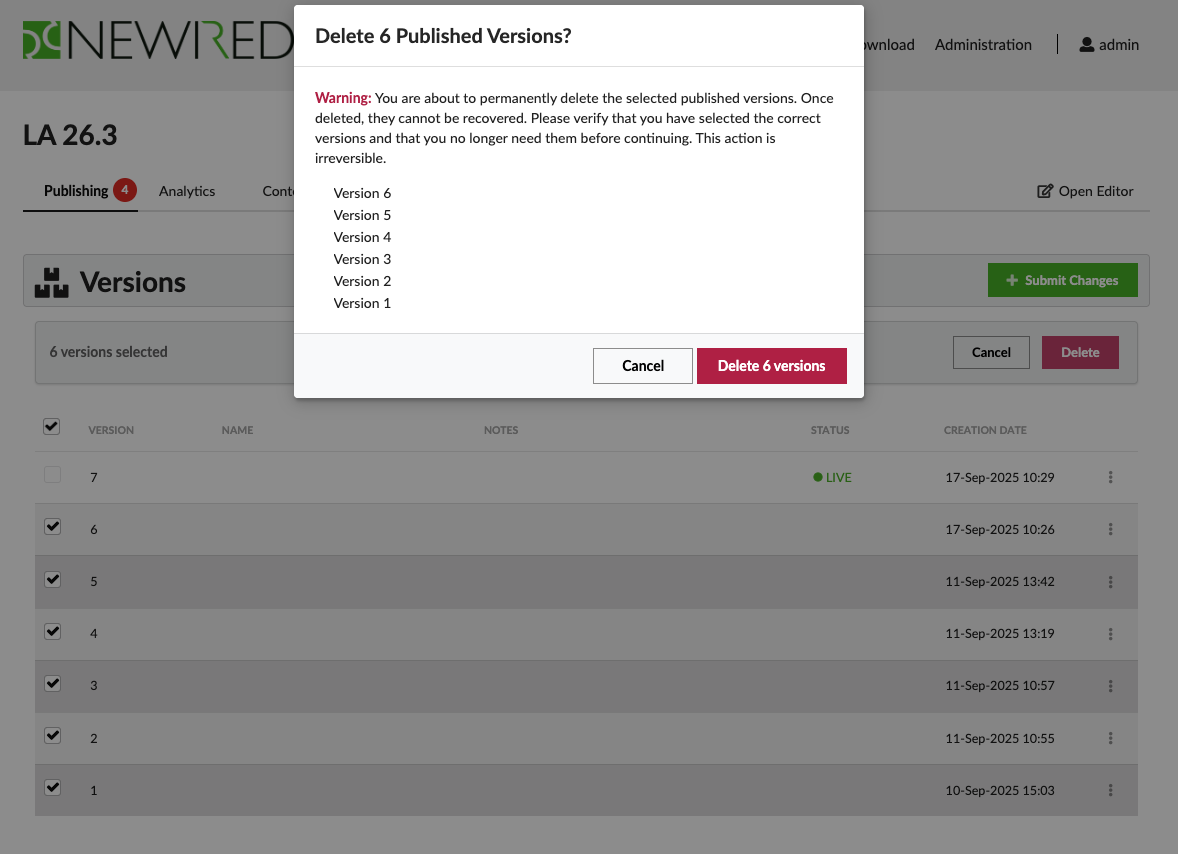
To delete a published version:
Open the relevant Site in the Portal and go to the Published page.
Find the version that is no longer needed.
Open the version's kebab menu and select Delete.
Review the permanent-deletion warning and verify that the correct version is selected.
Select Delete to confirm.
After confirmation, the version is permanently removed from the published version list and its stored published content data is deleted. The deleted version can no longer be downloaded, previewed, or made LIVE. Other published versions are not affected.
Important: Deletion is irreversible. Verify that the selected version is no longer needed before confirming the action.
Limitation: The currently LIVE version cannot be deleted. To delete it, first make another version LIVE or unpublish the current version, where appropriate.
For context on publishing behavior, see:
https://support.newired.com/a/solutions/articles/103000012613
3. Configure Content Delivery Cleanup
Administrators can configure the Content Delivery Cleanup job from the Maintenance section of the Administration page. The job automatically removes obsolete published versions according to a saved retention policy.
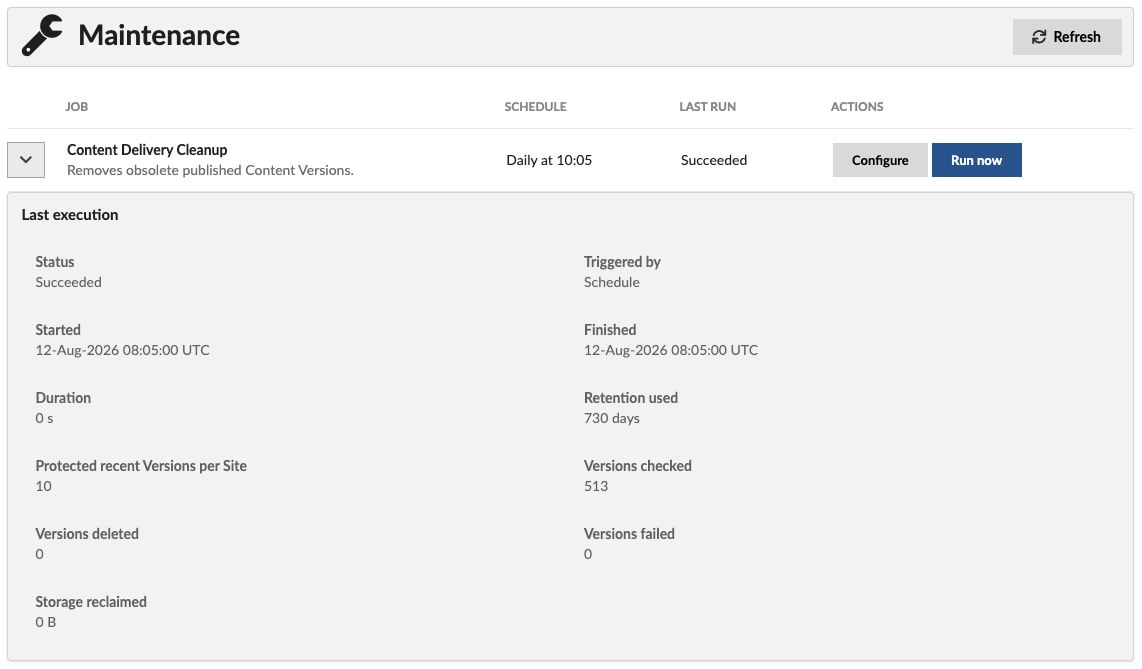
To configure Content Delivery Cleanup:
Open Administration and locate the Maintenance section.
Select Configure for Content Delivery Cleanup.
Enable or disable automatic execution.
Choose a Daily, Weekly, or Monthly schedule and specify the time of day when the cleanup should run.
Set the retention period and the number of newest published versions that must always be protected.
Select Save.
The cleanup evaluates each Site independently. A published version is deleted only when it is older than the configured retention period, is not LIVE, and is not among the configured number of newest protected versions. The newest protected versions are retained even when a Site has no LIVE version.
Disabling automatic execution does not prevent an administrator from selecting Run now. Run now uses the currently saved configuration as default and users can alter it before run. Only one cleanup execution can run at a time.
All Portal users who can access Administration can view the job status, saved schedule, and latest execution information. Only an administrator can change the configuration or start the job.
Important: Versions removed by Content Delivery Cleanup are permanently deleted and cannot be restored, downloaded, previewed, or made LIVE.
4. Additional Recommendations
Regularly monitor storage growth trends
Adjust data retention strategies where applicable
Avoid unnecessary accumulation of test or temporary content
Delete obsolete non-LIVE published versions as part of regular maintenance
Review the Content Delivery Cleanup execution result after changing its retention policy
Contact your Newired Sales representative to discuss a possible server expansion or migration to a higher subscription tier, based on current usage and future growth requirements.
Was this article helpful?
That’s Great!
Thank you for your feedback
Sorry! We couldn't be helpful
Thank you for your feedback
Feedback sent
We appreciate your effort and will try to fix the article